

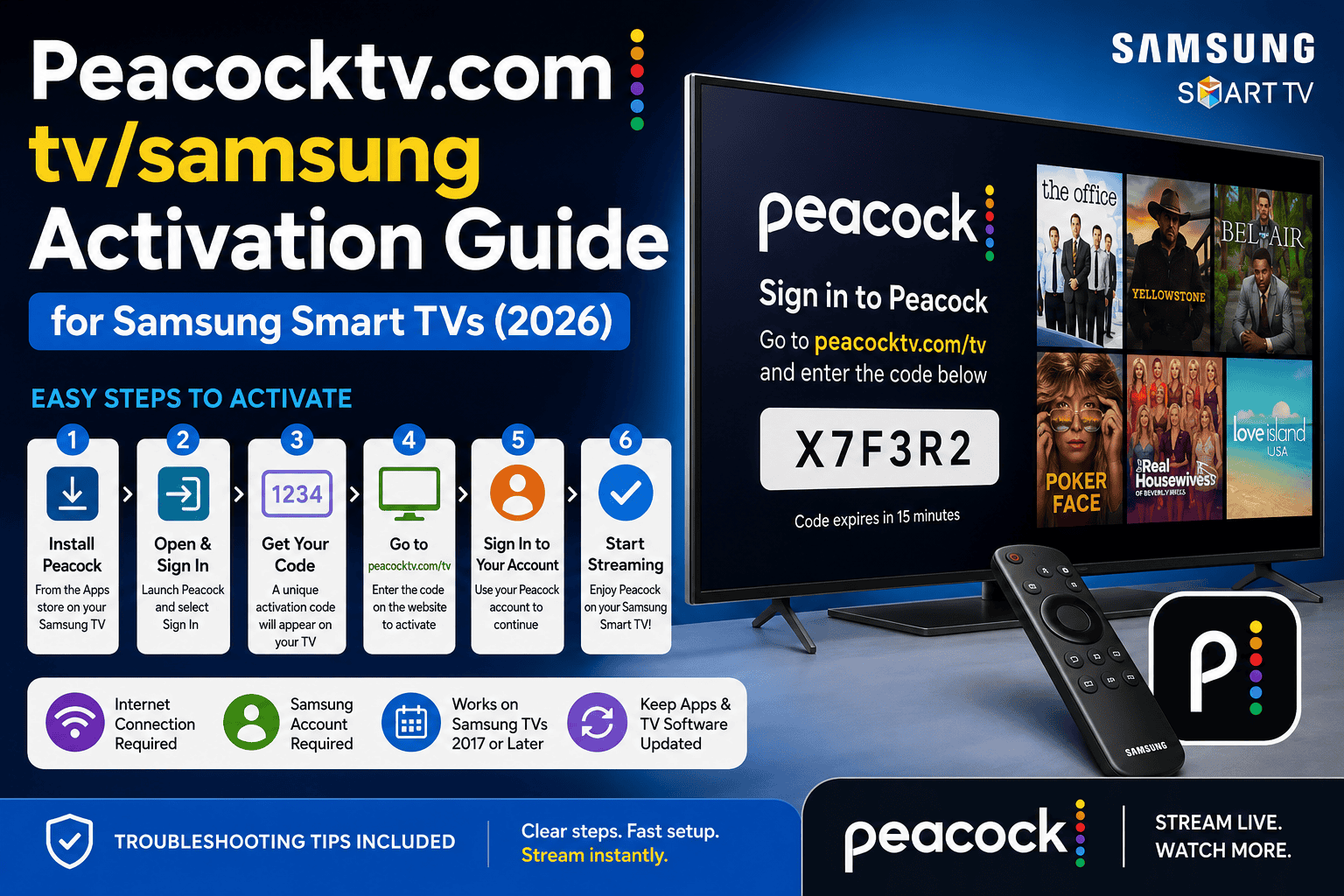
To activate Peacock on a Samsung Smart TV, install the Peacock app, open it, select Sign In, and enter the activation code on Peacock’s activation page. Peacock supports Samsung Smart TV models from 2017 or later, and Samsung requires a Samsung account for network-based smart services.
What You Need Before You Start
A smooth activation depends on a few basic items. Your Samsung TV should be connected to the internet, signed in with a Samsung account, and updated to the latest software. Samsung says apps can be installed from the Apps store, and it also recommends keeping apps on Auto Update for easier maintenance. Peacock also notes that the service is available only for US customers and is not yet available in other territories.
Peacock Activation Steps on Samsung Smart TV
| Step | What to Do | Why It Matters |
|---|---|---|
| 1 | Open Apps on your Samsung TV | This is where you find streaming apps |
| 2 | Search for Peacock and install it | Peacock must be installed before activation |
| 3 | Open the Peacock app and choose Sign In | This starts the activation process |
| 4 | Write down the activation code shown on the TV | The code links the TV to your account |
| 5 | Enter the code on Peacock’s activation page | This connects the TV and account |
| 6 | Sign in with your Peacock account details | This completes the device link |
Samsung’s official app steps are simple. From the Home screen, go to Apps, use Search, find the app, and select Install. After that, open the app from the Home screen or from Apps if it does not appear on the main menu. Peacock’s device activation flow begins with the app showing a code after you choose Sign In.
Install the Peacock App the Right Way
On a Samsung Smart TV, the correct path is Home, Apps, Search, Peacock, then Install. Samsung also says you can add the app to your Home screen after installation, which makes future access easier. If the app is missing from the Home row, you can still open it from Apps.
How Samsung Account and App Updates Help
Samsung states that a Samsung account is required for network-based smart services, including streaming apps. If you have not signed in yet, do that first before trying to activate Peacock. Samsung also recommends turning on Auto Update for apps, because outdated apps can create sign-in or loading problems.
Common Activation Problems and Fixes
| Problem | Best Fix |
|---|---|
| Peacock app will not open | Cold boot the TV and try again |
| App freezes or crashes | Update TV software |
| Activation screen does not load | Delete and reinstall Peacock |
| TV still has app errors | Reset Smart Hub |
| App not listed in store | Check model support and software version |
Samsung’s official troubleshooting flow for broken apps is clear. If an app freezes, does not load, is missing, or crashes, Samsung recommends a cold boot, a software update, deleting and reinstalling the app, and then resetting Smart Hub if needed. A cold boot is not the same as a normal power off, because it fully reboots the TV.
Cold Boot the TV Before You Retry Activation
A cold boot is often the fastest fix. Samsung says you can hold the Power button on the remote until the TV turns off and back on again. This can clear app glitches and menu problems without changing your settings. After the reboot, open Peacock again and check whether the activation code appears normally.
Update the TV Software
If Peacock keeps failing, update the TV software from Settings, then Support, then Software Update, and finally Update Now. Samsung says software updates can fix app and system issues, and the TV may reboot after the update finishes. This is one of the most important steps when an app is unstable.
Delete and Reinstall Peacock
If the app still does not work, remove it and install it again. Samsung says to open Apps, select the Settings icon in the top right, find the app, choose Delete, and then install it again through Search. Samsung also notes that some recommended apps may show Reinstall instead of Delete.
Reset Smart Hub When the Problem Continues
Smart Hub reset is the stronger fix when normal steps do not help. Samsung says this will sign you out of Samsung account and app accounts, so it is smart to keep your login details ready first. For 2018 and earlier TVs, the path is Settings, Support, Self Diagnosis, Reset Smart Hub. For 2019 and later TVs, the path is Settings, Support, Device Care, Self Diagnosis, Reset Smart Hub. Samsung also notes that you may need to download the app again after the reset.
Supported Samsung TV Models for Peacock
Peacock says Samsung Smart TV models from 2017 or later are supported. That means older Samsung TVs may not show the app in the store or may not support the current Peacock app experience. If the app is not available on your model, Samsung says some users may need an external device that supports the app store they need.
Best Setup for Smooth Streaming
A stable setup is the best long-term fix. Use a strong internet connection, keep the Samsung TV software updated, turn on app Auto Update, and make sure Peacock is installed from the official Apps store. Samsung also says you can manage apps from Apps > App Settings, where you can update, remove, lock, or move them as needed.
When Activation Still Does Not Work
If Peacock still does not activate after reinstalling the app and updating the TV, Peacock directs users to its help center for account and device support. Samsung also says that if the issue remains after the TV steps are completed, the app developer should be contacted because the app itself may need a compatibility fix.
Quick Activation Checklist
- Confirm the TV is a supported Samsung Smart TV model.
- Connect the TV to the internet.
- Sign in with a Samsung account.
- Install Peacock from Apps.
- Open Peacock and select Sign In.
- Enter the activation code on Peacock’s activation page.
- Cold boot, update, reinstall, or reset Smart Hub if the app fails.
Samsung Smart TV Peacock Activation FAQ
Do I need a Samsung account?
Yes. Samsung says a Samsung account is required for network-based smart services, including streaming apps.
What Samsung TVs support Peacock?
Peacock says Samsung Smart TV models from 2017 or later are supported.
What should I do if the app crashes?
Samsung recommends a cold boot, software update, delete and reinstall, and Smart Hub reset if needed.
Is Peacock available everywhere?
No. Peacock says it is available for US customers and is not yet available in other territories.