

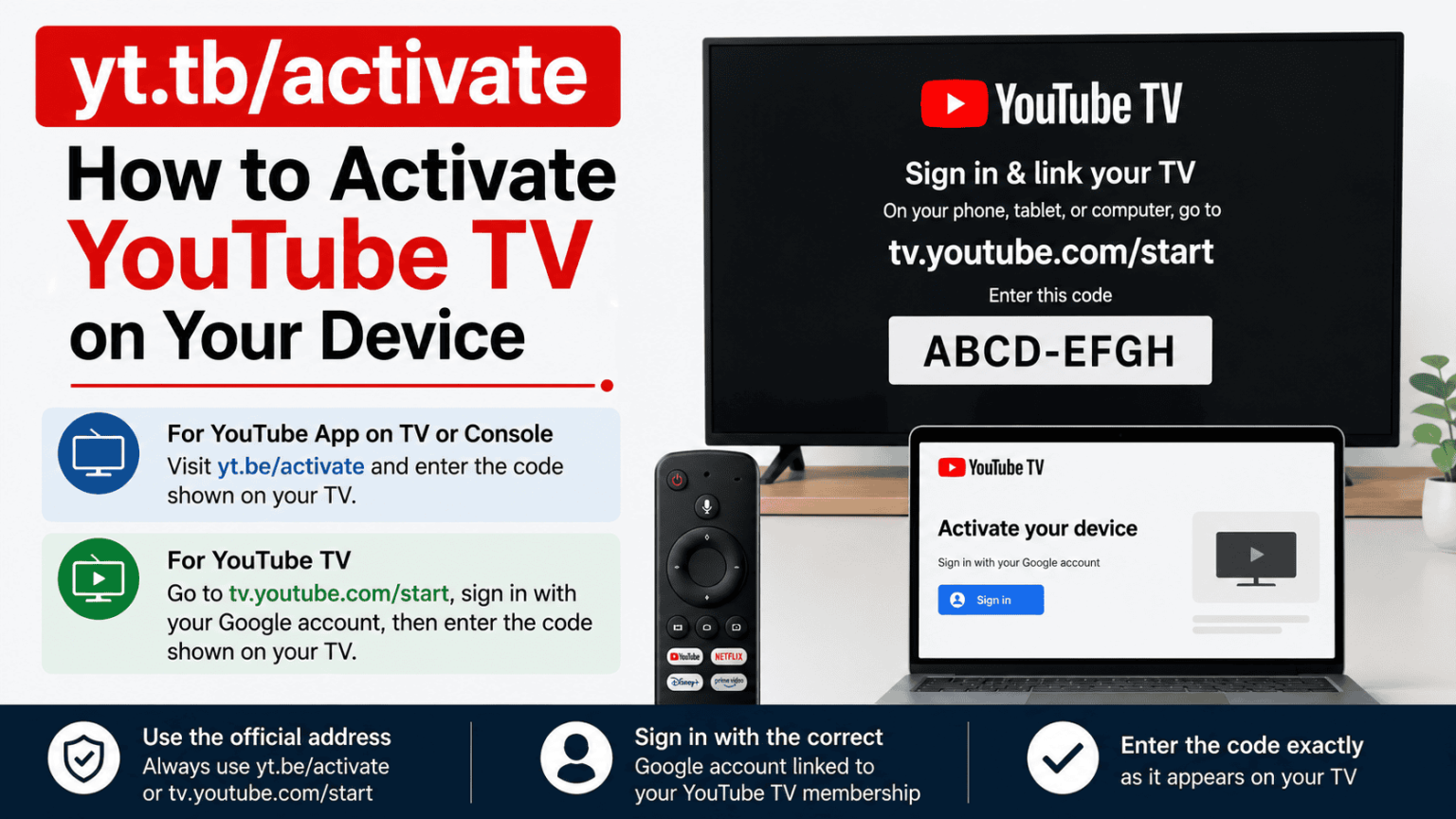
To activate YouTube on a smart TV or streaming device, open the YouTube app, choose Sign in, and enter the code shown on your TV at yt.be/activate. For the separate YouTube TV service, use tv.youtube.com/start when the YouTube TV app displays an activation code.
Is yt.tb/activate the Correct YouTube Activation Address?
The address yt.tb/activate is commonly searched by users looking for YouTube activation instructions. However, the official YouTube Help Center lists yt.be/activate for signing in to the YouTube app on supported smart TVs and game consoles.
If your device is showing instructions to visit yt.be/activate, use that address and enter the code displayed on the TV.
For YouTube TV, the official sign-in process uses tv.youtube.com/start. The YouTube TV app displays a code, which you enter on that page after signing in with the Google account connected to your YouTube TV membership.
This difference is important because YouTube and YouTube TV are separate apps and services.
yt.be/activate vs tv.youtube.com/start
| Activation service | Official address | Main purpose |
|---|---|---|
| YouTube | yt.be/activate | Sign in to the YouTube app on a TV or game console |
| YouTube TV | tv.youtube.com/start | Sign in to the YouTube TV app on a supported TV device |
YouTube confirms that the regular YouTube app can be activated by scanning the QR code or visiting yt.be/activate and entering the code shown on the screen.
How to Activate YouTube on a Smart TV
The activation process is simple if your TV has the YouTube app installed.
Step 1: Open the YouTube App
Turn on your smart TV and open the YouTube app.
If YouTube is not installed, open your TV's app store and search for YouTube. Install the official app before continuing.
Step 2: Select Sign In
Open the left-side menu in the YouTube app and select Sign in.
Depending on your TV model, you may see options to sign in with your phone, scan a QR code, or use the TV remote.
Step 3: Get the Activation Code
After selecting the phone or web sign-in option, your TV will display a code.
Keep this screen open. You will need the code to connect your Google account to the TV.
Step 4: Open yt.be/activate
Use a phone, tablet, or computer and open yt.be/activate.
YouTube's official instructions specifically recommend this page when signing in to YouTube on a TV or game console.
Step 5: Enter the TV Code
Type the activation code shown on your TV into the required field.
Make sure every character is entered correctly. An incorrect or expired code can prevent the sign-in process from completing.
Step 6: Sign In to Your Google Account
Sign in using the Google account you want to connect to the TV.
After authentication, the YouTube app on your TV should connect to your account.
Step 7: Return to Your TV
Go back to the YouTube app on your TV.
Your account should now be signed in, allowing you to access features such as subscriptions, your Library, and personalized content.
How to Activate YouTube TV on a Smart TV
YouTube TV has a different activation process from the standard YouTube app.
Step 1: Install the YouTube TV App
Open the app store on your compatible smart TV or streaming device.
Search for YouTube TV and install the official application if it is not already installed.
YouTube notes that the YouTube TV app is different from the regular YouTube app, so make sure you select the correct application.
Step 2: Open YouTube TV
Launch the YouTube TV app after installation.
Select Sign In.
Step 3: Find the Activation Code
The application should display an activation code on your TV.
Some devices may also provide a QR code that you can scan with your phone.
Step 4: Visit tv.youtube.com/start
On your phone, tablet, or computer, open tv.youtube.com/start.
The official YouTube TV Help Center identifies this page as the sign-in method for supported TV devices.
Step 5: Enter the Code
Enter the activation code displayed on your television.
Select Continue and follow the instructions on the screen.
Step 6: Sign In
Use the Google account associated with your YouTube TV membership.
Once the account is verified, return to your television. The YouTube TV app should complete the sign-in process.
How to Activate YouTube With a QR Code
Some TVs provide a QR code instead of requiring you to type the activation address manually.
Open the YouTube or YouTube TV app and select the sign-in option. When a QR code appears, scan it with your phone's camera.
Follow the instructions displayed on your phone. You may still need to confirm the Google account you want to use.
QR sign-in can be faster because it avoids manually entering the activation code.
How to Sign In to YouTube Using Your Phone
YouTube also supports phone-based sign-in on compatible TV devices.
- Open the YouTube app on your TV.
- Select Sign in.
- Choose the phone sign-in option.
- Scan the QR code or follow the instructions shown on the TV.
- Confirm the Google account on your phone.
- Return to the YouTube app on your TV.
YouTube says users can scan the QR code or visit yt.be/activate from a phone, tablet, or computer and then enter the code shown on the TV.
How to Activate YouTube on Roku
YouTube is available on supported Roku devices.
Install or open the YouTube app and select Sign in. The screen will provide a QR code or activation code.
If a code is shown, open yt.be/activate on another device and enter the code. Then sign in to the correct Google account.
The same basic activation process applies to many supported streaming devices.
How to Activate YouTube on Fire TV
On an Amazon Fire TV device, open the app store and install the YouTube app if necessary.
Open YouTube and choose Sign in.
When the activation code appears, use a phone or computer to open yt.be/activate. Enter the code and sign in with your Google account.
After successful authentication, the Fire TV YouTube app should update automatically.
How to Activate YouTube on Google TV
Open the YouTube app on your Google TV device.
Select Sign in and choose the available phone or QR sign-in option.
If the TV provides an activation code, visit yt.be/activate from another device and enter the code.
You can then select the Google account you want to use.
How to Activate YouTube on Samsung Smart TV
Samsung Smart TVs use the YouTube app to provide access to YouTube content.
Open the YouTube app and select Sign in.
If the TV displays an activation code, visit yt.be/activate using a phone or computer.
Enter the code and complete the Google account sign-in process.
If YouTube TV is what you want to watch, make sure you open the YouTube TV app rather than the standard YouTube application.
How to Activate YouTube on LG Smart TV
Open the YouTube app from your LG TV's home screen.
Select Sign in and follow the instructions shown on the TV.
If you receive an activation code, open yt.be/activate on your phone or computer and enter the code.
Complete the Google account verification to connect your account.
For YouTube TV, use the YouTube TV app and follow its separate activation instructions through tv.youtube.com/start.
How to Activate YouTube on a Game Console
YouTube supports sign-in on compatible game consoles.
Open the YouTube app and select Sign in.
You can use the QR code or open yt.be/activate on another device. Enter the code displayed on the console and sign in with your Google account.
YouTube's official help documentation confirms that this activation method is available for supported game consoles.
What You Need Before Activation
You normally need the following items:
| Requirement | Why it is needed |
|---|---|
| YouTube or YouTube TV app | Provides the sign-in screen |
| Internet connection | Allows the device to communicate with the service |
| Activation code | Links the TV or streaming device to your account |
| Google account | Used to sign in |
| Phone, tablet, or computer | Can be used to complete activation |
YouTube TV also requires a supported device and an internet connection. YouTube states that YouTube TV availability and supported devices can change over time.
What to Do If the Activation Code Does Not Work
An activation code may fail if it was entered incorrectly or is no longer valid.
Try these steps:
- Check the code carefully.
- Return to the sign-in screen on your TV.
- Generate a new activation code.
- Open the correct activation page.
- Enter the new code.
- Make sure you are using the correct Google account.
- Restart the TV or streaming device if the problem continues.
YouTube recommends power cycling the device and restarting the router and mobile device when sign-in problems continue.
Check Your Internet Connection
A stable internet connection is required for YouTube and YouTube TV activation.
Check whether other apps on the TV can access the internet. If they cannot, restart your router and reconnect the TV.
For phone-based activation, make sure your phone has an active internet connection.
YouTube also advises checking the network settings on the TV when troubleshooting sign-in problems.
Use the Correct Google Account
Activation connects the device to the Google account you select during the sign-in process.
If you have more than one Google account, check the account name before confirming.
For YouTube TV, use the Google account associated with the YouTube TV membership. This helps prevent problems where the app opens but does not show the expected membership or content.
What If the Activation Page Does Not Open?
If yt.be/activate does not load, check your internet connection and try again.
You can also:
- Open the page in another browser.
- Restart your phone or computer.
- Clear temporary browser data.
- Check that you typed the address correctly.
- Generate a new code on the TV.
- Use the QR code if your device provides one.
For YouTube TV, make sure you are using tv.youtube.com/start rather than the activation page intended for the standard YouTube app.
What If the Code Has Expired?
An expired activation code cannot normally be used.
Return to the sign-in screen on your TV and generate another code. Then open the correct activation page and enter the new code.
YouTube TV's official help information also recommends returning to the app and refreshing the activation process when a code has expired.
YouTube and YouTube TV Are Not the Same App
This is one of the most common sources of confusion.
The YouTube app provides access to regular YouTube videos, channels, subscriptions, playlists, and other YouTube content.
YouTube TV is a separate live television streaming service with its own application and membership.
YouTube specifically states that the YouTube TV app is different from the YouTube app when downloading it on a TV device.
Is yt.be/activate Safe?
When your TV instructs you to use yt.be/activate, use the official YouTube address rather than an unrelated third-party website.
Do not enter your Google password or other account information into websites that imitate YouTube's activation page.
The safest approach is to start from the YouTube app on your device and follow the activation address displayed there.
Frequently Asked Questions
What is yt.be/activate used for?
yt.be/activate is used to sign in to the YouTube app on supported TVs and game consoles by entering the code displayed on the device.
Is yt.tb/activate the same as yt.be/activate?
The official YouTube Help Center lists yt.be/activate for the standard YouTube TV and console sign-in process. If you searched for yt.tb/activate, check the address carefully before entering any account information.
What is the YouTube TV activation URL?
For YouTube TV, the official sign-in instructions use tv.youtube.com/start.
Do I need a Google account?
Yes. YouTube uses a Google account for signing in to the YouTube app, and YouTube TV uses a Google account associated with the service membership.
Can I use my phone to activate YouTube?
Yes. You can use a phone to scan a QR code or visit yt.be/activate and enter the code displayed on your TV.
Why does YouTube show a different activation code?
Activation codes can change when you restart or reload the sign-in process. If the old code no longer works, generate a new one and enter it on the correct activation page.
Can I activate YouTube without a remote?
Some supported devices provide QR code or phone-based sign-in options. Availability depends on the device and the version of the YouTube app.
Does YouTube TV work on every smart TV?
No. YouTube TV is available only on supported devices. Google notes that supported devices can change, so users should check the current YouTube TV device requirements before installing the service.
Why does YouTube TV ask for my location?
YouTube TV uses location information to determine available programming and local channels. The service also has location-based viewing restrictions.
What should I do if YouTube keeps signing me out?
Start by checking the internet connection and restarting the device. If the problem continues, sign in again using a new activation code. YouTube recommends restarting the device, router, and mobile device when standard sign-in troubleshooting does not resolve the issue.
You can read it's also: Peacocktv.com tv/samsung Activation Guide for Samsung Smart TVs (2026)