

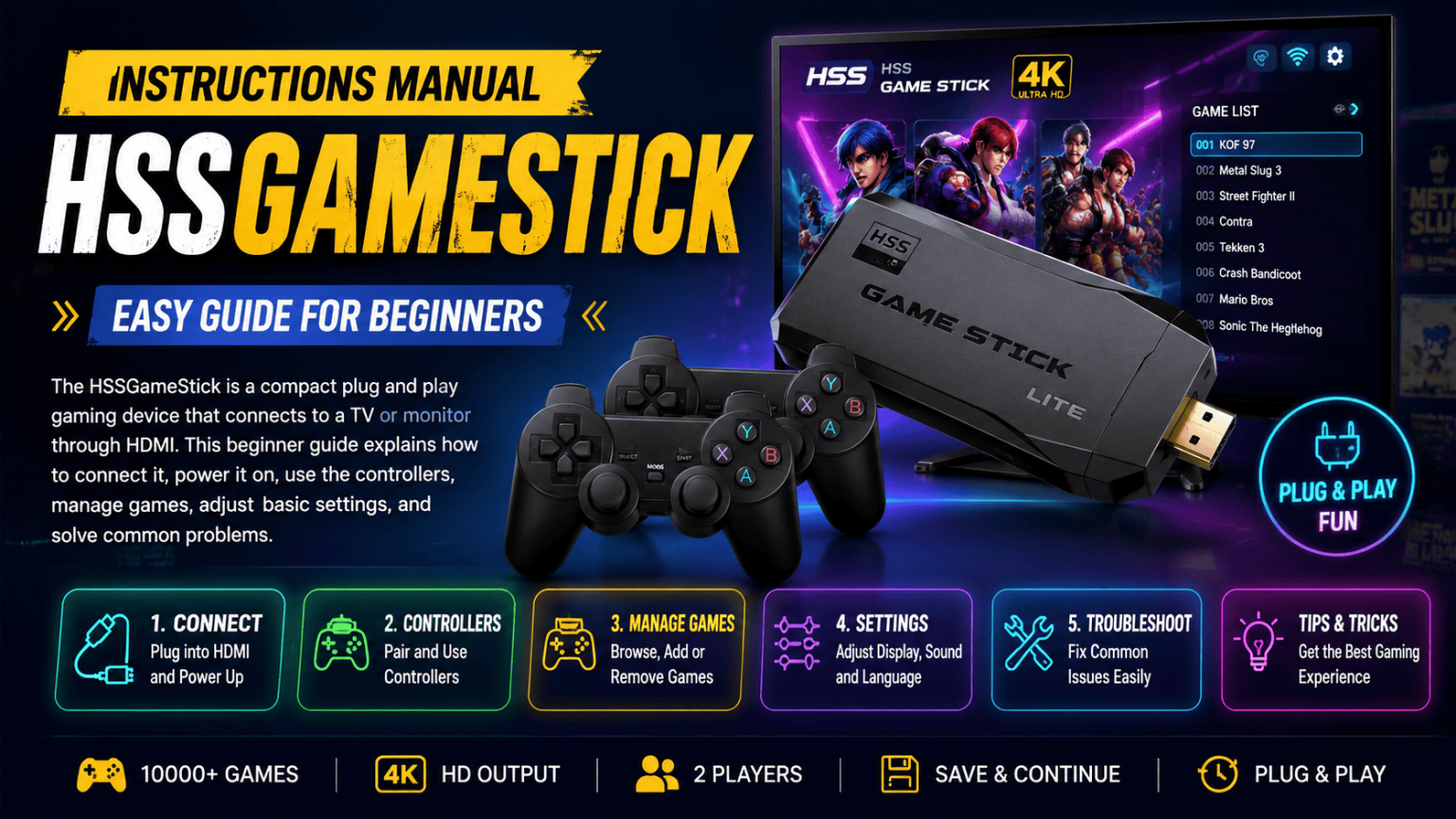
The HSSGameStick is a compact plug and play gaming device that connects to a TV or monitor through HDMI. This beginner guide explains how to connect it, power it on, use the controllers, manage games, adjust basic settings, and solve common problems.
What Is HSSGameStick?
HSSGameStick is a small gaming device designed mainly for playing retro and classic games on a television or monitor. It uses an HDMI connection for video output and commonly works with wireless controllers. Different packages and firmware versions can have different features, menu layouts, and included accessories.
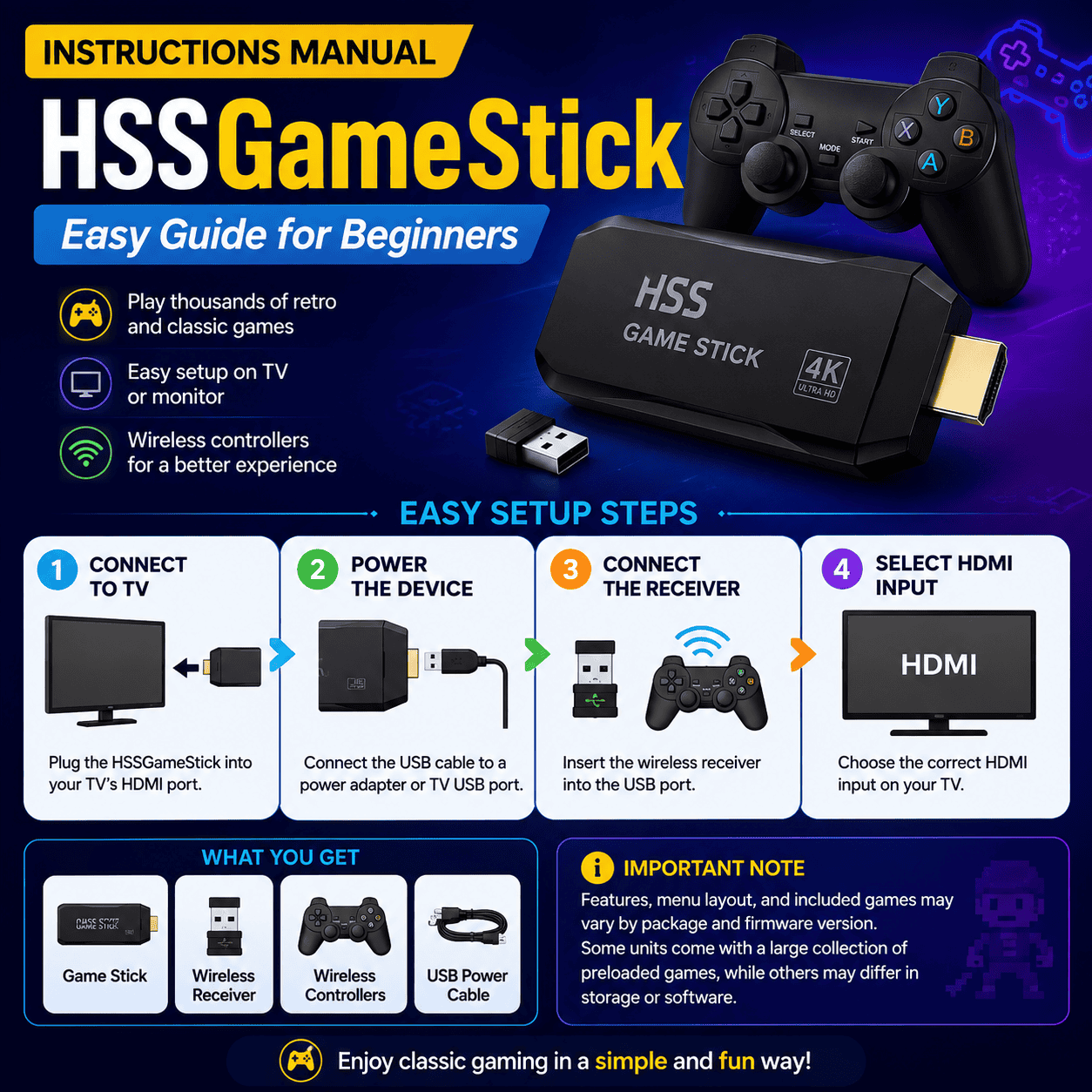
The device is designed to keep setup simple. In many versions, users only need to connect the stick to an HDMI port, provide USB power, connect the wireless receiver, and select the correct HDMI input on the TV.
The exact game library also depends on the version of the GameStick. Some units are sold with a large collection of preloaded games, while other versions may offer different storage or software configurations.
What Comes With the HSSGameStick?
The contents can vary by seller and model, so check the box before installation. Common accessories reported for HSSGameStick packages include the following.
| Item | Purpose |
|---|---|
| HSSGameStick | Main gaming device |
| Wireless controllers | Control games and navigate menus |
| Wireless USB receiver | Connects compatible wireless controllers |
| USB power cable | Supplies power to the GameStick |
| HDMI extension cable | Makes HDMI installation easier when space is limited |
| Memory card | Stores system files and, on some versions, games |
Some packages may not include every item shown above. The included cable type, controller design, storage card, and power accessory can differ between versions.
HSSGameStick Setup Requirements
Before starting the setup, make sure you have a television or monitor with a suitable HDMI port.
You should also have a stable USB power source and batteries for wireless controllers if your particular controllers use replaceable batteries.
A basic setup requires:
- An available HDMI port.
- The HSSGameStick.
- The supplied HDMI extension cable when needed.
- The USB power cable.
- The wireless receiver.
- Compatible wireless controllers.
- Batteries for the controllers when required.
Keeping all parts together makes troubleshooting much easier later.
How to Connect HSSGameStick to a TV
The initial connection is simple when each cable is used for its intended purpose.
Step 1: Connect the HDMI Cable
Insert the HSSGameStick into an open HDMI port on your television or monitor.
Do not force the device into the port. If the space behind the TV is tight, use the HDMI extension cable supplied with the unit. This can reduce physical pressure on the HDMI port and make the installation easier.
Step 2: Connect the Power Cable
Connect the supplied USB power cable to the GameStick.
Connect the other end to a suitable USB power source. Some setup guides recommend a stable wall power adapter because insufficient or unstable power can contribute to startup problems. Use the power specification supplied with your particular unit rather than assuming a universal adapter rating.
Step 3: Connect the Wireless Receiver
If your controllers use a separate wireless receiver, plug the receiver into the appropriate USB port on the GameStick.
The receiver is responsible for communication between the wireless controllers and the console.
Step 4: Insert Controller Batteries
Install the required batteries in the wireless controllers.
Check the positive and negative markings inside the battery compartment. Incorrect battery placement can prevent the controller from powering on.
Step 5: Select the Correct HDMI Input
Turn on the television and use the TV remote to select the HDMI input where the GameStick is connected.
For example, if the stick is connected to HDMI 2, select HDMI 2 on the TV.
Step 6: Wait for the Main Menu
Once the GameStick receives power and the TV is using the correct input, the startup screen or main menu should appear.
Use the controller to move through the available options.
How to Pair the HSSGameStick Controllers
Controller pairing can differ between models, but many wireless HSSGameStick setups use a dedicated USB receiver. Some guides describe pressing and holding the Home button for several seconds until the controller indicator begins flashing or becomes stable after pairing.
Use this general process:
- Make sure the wireless receiver is connected.
- Check that the controller batteries are installed correctly.
- Turn on the controller.
- Press and hold the Home or pairing button when required by your model.
- Wait for the controller light to indicate a connection.
- Test the directional buttons and main action buttons.
If the controller does not respond, turn both the GameStick and controller off, then repeat the pairing process.
Do not assume that every HSSGameStick uses exactly the same button combination. The controller design and firmware can change between versions.
How to Navigate the HSSGameStick Menu
The main menu normally contains game categories, game lists, favorites, and system or configuration options.
Use the directional pad to move through menus.
The action button normally selects an item. Another button may return to the previous screen.
The exact button layout depends on the controller and software version.
Before changing advanced settings, spend a few minutes learning these basic functions:
| Function | Typical control |
|---|---|
| Move through menu | Directional pad |
| Select item | Main action button |
| Go back | Back or secondary button |
| Open system options | Settings menu |
| Start a game | Select the game and confirm |
Button labels can vary, so use the markings on your controller as the primary reference.
How to Start a Game
After the main menu loads, browse the available categories or game list.
Select a title and confirm your choice using the controller.
Allow a few seconds for the game to load. Older emulated systems may display a loading screen before gameplay begins.
Once the game starts, use the controller normally.
It is better to test one game first before changing multiple system settings. This makes it easier to identify whether a problem is related to the game, controller, display, or general system configuration.
How to Exit a Game
The exit method can depend on the emulator or firmware installed on the GameStick.
Some systems use a dedicated controller shortcut, while others provide an emulator menu or exit option.
Check the controller instructions supplied with your specific device before using an unfamiliar button combination.
Avoid switching off power while a game or system is actively saving data.
HSSGameStick Display Settings
Some HSSGameStick guides describe display options such as 720p and 1080p, along with aspect ratio controls. However, available options can vary by model and firmware.
Resolution
Resolution determines how the image is displayed on the screen.
A compatible 1080p setting can provide a sharper picture on a Full HD display. If you encounter a black screen, flickering, or compatibility problems after changing the resolution, return to a lower supported setting such as 720p when available.
Do not select a resolution simply because it has a larger number. The correct setting depends on what both the GameStick and display support.
Aspect Ratio
Retro games were often designed around a 4:3 image format.
Modern televisions commonly use 16:9 widescreen.
Choosing the correct aspect ratio can prevent old games from appearing stretched. A 4:3 setting can preserve the original proportions of many classic titles, while 16:9 is suitable for content designed for widescreen displays.
Brightness and Picture Controls
Some versions may provide additional display controls, including brightness, contrast, or image effects.
Make small changes and test them in an actual game. Extreme settings can make dark areas difficult to see or cause the image to look unnatural.
HSSGameStick Audio Settings
Audio settings may include volume and output options depending on the software version.
Start with the default audio mode.
If sound is missing, first check that the TV is not muted and that the HDMI connection is secure.
If the device provides multiple audio output choices, select the option that matches your setup.
Do not change several audio settings at once. Test one adjustment before moving to the next.
Also Read: Mygamerank Gaming Guides | Tips, Walkthroughs & Game Strategies
How to Configure HSSGameStick Controls
Many HSSGameStick guides describe controller mapping and sensitivity settings. Some systems allow different configurations for different emulators or game types.
Controller configuration can include:
- Button mapping
- Joystick sensitivity
- Control profiles
- Emulator-specific controls
- Turbo functions on supported controllers
Button Mapping
Button mapping lets you assign a different action to a controller button when the software supports it.
This can be useful when the default layout feels unfamiliar.
Change one button at a time and test the result before changing the complete layout.
Sensitivity
Sensitivity controls how strongly certain inputs respond.
If a joystick feels too sensitive, a lower setting may make movement easier to control. If input feels slow, the opposite adjustment may help when the option is available.
The ideal setting depends on the game and controller.
Control Profiles
Some firmware and emulator setups can save different control configurations.
This is useful when different game systems use different button arrangements.
How to Manage Games
Many HSSGameStick packages are sold with preloaded games, but the exact library and storage setup can differ.
Some guides also describe options for organizing favorites and managing games within the interface.
Use the built-in game management functions provided by your particular device.
Before adding or deleting files, check the manual supplied with the unit. Removing system files or changing storage contents without knowing what they do can prevent games or the interface from working properly.
Adding Games
Do not assume that every HSSGameStick supports the same method for adding games.
Some models may use removable storage or USB storage. Others may have software-specific requirements.
Only use game files that you are legally entitled to use and that are compatible with the device.
Back up important files before modifying the storage card.
Organizing Favorites
If your version includes a favorites feature, use it to keep regularly played games easy to find.
This is especially helpful when a system contains a large game library.
HSSGameStick Firmware and Updates
Software update features vary between devices.
Some guides describe a system update option, but the exact location and availability can depend on the firmware installed on the unit.
Before applying an update:
- Check the model and current firmware version.
- Read the instructions for that exact version.
- Make sure the device has stable power.
- Do not disconnect power during the update.
- Back up important data when possible.
Never install firmware intended for a different model just because the devices look similar.
Common HSSGameStick Problems and Fixes
Even a simple plug and play system can experience connection, power, controller, or display problems.
HSSGameStick Shows No Picture
Start with the HDMI connection.
Check that:
- The GameStick is fully connected.
- The USB power cable is connected.
- The TV is set to the correct HDMI input.
- The HDMI cable or extension is not damaged.
- The device is receiving adequate power.
Trying another HDMI port can also help identify whether the problem is related to the television port.
If the screen remains black after changing a display setting, return to a supported resolution when possible. Some HSSGameStick guides specifically recommend trying 720p when a higher setting causes compatibility problems.
HSSGameStick Does Not Turn On
Check the power connection first.
Disconnect the USB cable and reconnect it firmly.
Try another suitable power source that meets the device's stated requirements.
If there is still no response, check the cable and connector for physical damage.
Do not continue using a damaged power cable.
Controller Does Not Work
Check the batteries before changing software settings.
Make sure the wireless receiver is connected.
Restart the GameStick and controller.
Then repeat the pairing procedure described for your model.
A simple battery replacement can solve many controller problems.
Controller Keeps Disconnecting
Move the wireless receiver to a suitable position and remove unnecessary interference from nearby USB devices.
Check the controller batteries.
If your device uses a removable receiver, reconnect it securely.
Restart the GameStick if the connection remains unstable.
Games Run Slowly
Performance depends on the specific game, emulator, hardware, and settings.
Start by returning graphics settings to a simpler configuration.
If the system allows resolution changes, test a lower supported resolution.
Restart the device and test the same game again. Some HSSGameStick guides also recommend lowering demanding graphics settings when users experience stuttering.
Audio Is Missing
Check the television volume and mute status.
Then check the HDMI connection.
If your GameStick provides audio output options, confirm that the selected mode matches the TV or external audio equipment.
Restart the system after making the change.
The Screen Looks Stretched
Open the display settings and check the aspect ratio.
Use 4:3 for many traditional retro games when you want to preserve their original proportions.
Use 16:9 for content designed for widescreen display.
The Game Crashes
First restart the game.
If the issue continues, test another game.
A single game failing does not always mean the entire GameStick is defective.
If the system allows emulator or game settings to be restored, return the affected configuration to its default state.
HSSGameStick Becomes Too Hot
Keep the device in an open, ventilated area.
Do not cover the GameStick while it is operating.
Avoid placing it against materials that can block airflow.
Overheating can contribute to unstable performance, so proper ventilation is an important part of routine use.
Best Beginner Settings for HSSGameStick
Beginners should avoid changing every available option at once.
A simple starting point is:
| Setting | Beginner approach |
|---|---|
| Resolution | Use a supported setting that matches the TV |
| Aspect ratio | 4:3 for traditional retro games |
| Controls | Keep default mapping initially |
| Sensitivity | Start with the default value |
| Audio | Use the standard output mode |
| Graphics effects | Leave at default |
| System options | Change only when necessary |
This approach makes troubleshooting easier because fewer variables have been changed.
Safe HSSGameStick Usage Tips
Use the GameStick with the cables and accessories supplied for the unit whenever possible.
Keep the device away from liquids and excessive heat.
Do not block ventilation openings.
Disconnect power before inspecting a damaged cable or connector.
Do not force HDMI or USB connections.
Keep storage cards and cables in a safe place when the device is not being used.
Avoid removing storage while the system is writing data.
Do not install unknown firmware or software packages from unverified sources.
How to Reset HSSGameStick Settings
A reset can be useful when configuration changes create problems, but it should not be the first solution.
Before resetting, check whether the problem can be solved by returning one setting to its previous value.
If the system provides a reset or restore option, read the on-screen warning carefully.
A factory reset may remove customized settings and, depending on the device, may affect stored data.
Back up important files before performing a full reset when the system allows it.
HSSGameStick Setup Checklist
Use this checklist during your first installation:
- Connect the GameStick to HDMI.
- Use the HDMI extension cable if needed.
- Connect the USB power cable.
- Connect the wireless receiver.
- Insert controller batteries.
- Turn on the TV.
- Select the correct HDMI input.
- Wait for the main menu.
- Pair or activate the controller.
- Test one game.
- Check display and audio.
- Change settings only when necessary.
HSSGameStick Maintenance
Regular maintenance does not require complicated work.
Keep the device and its connectors clean and dry.
Avoid repeatedly bending the HDMI or USB cables.
Store the controllers safely when they are not in use.
Check batteries periodically and remove them if the controller will be stored for a long period and the manufacturer allows it.
Keep the memory card protected from physical damage.
If the GameStick develops a problem after a software change, record what was changed before attempting additional fixes. This makes the original cause easier to identify.
HSSGameStick Manual Settings Beginners Should Know
The most useful settings for a new user are display, audio, controller, and system options.
A basic understanding of these four areas is enough for most everyday use.
Display settings control resolution and aspect ratio.
Audio settings control sound output and volume options.
Controller settings handle mapping and, on supported versions, sensitivity or other input controls.
System settings may contain language, storage, update, reset, and device information options.
The names and exact menu paths can differ between firmware versions, so use the wording shown on your own screen rather than relying on a menu path from another model.
Frequently Asked Questions
Do I need the internet to play HSSGameStick?
Not necessarily. A GameStick with locally stored games can generally be used for offline gameplay. Internet-related features, where supported, depend on the particular firmware and model.
Does every HSSGameStick include the same games?
No. Game libraries can differ between versions, sellers, storage configurations, and software builds. Check the actual package and device information for the exact game list.
Can HSSGameStick work with a monitor?
A compatible monitor with HDMI input can generally be used when the monitor accepts the GameStick's video signal. Audio behavior may depend on the monitor and the device's output configuration.
What resolution should a beginner use?
Start with the resolution supported by both the GameStick and your display. If 1080p works correctly, it can provide a sharp image on a Full HD display. If you experience compatibility issues, test a lower supported resolution such as 720p.
Why does my retro game look stretched?
The aspect ratio may not match the original game format. Many classic titles use 4:3, while modern televisions commonly use 16:9. Selecting the appropriate ratio can improve the image shape.
Can I change controller buttons?
Some HSSGameStick versions support button mapping and custom control profiles. The available options depend on the firmware and emulator.
Should I change advanced settings immediately?
No. Start with the default configuration and test the system first. Advanced changes should be made one at a time so you can easily identify their effects.
What should I do when the TV says No Signal?
Check the HDMI connection, verify that the GameStick has power, and select the correct HDMI input. Try another HDMI port if necessary. If the problem started after changing the resolution, return to a supported display setting.
What should I do if the controller will not pair?
Check the batteries, make sure the wireless receiver is connected, restart the device, and repeat the pairing process for your controller model. Some HSSGameStick guides describe holding the Home button for several seconds during pairing.
Can I add more games?
This depends on the HSSGameStick model, firmware, and storage system. Do not copy random files to the device without checking compatibility and the instructions for your particular version.
Is a factory reset safe?
A factory reset can restore default system settings, but it may remove custom configurations and could affect stored data depending on the device. Use it only after simpler troubleshooting steps have failed and back up important data first.
Also Read: Haysingls | Meaning, Details, Uses & Important Information
Key Points for New HSSGameStick Users
The basic HSSGameStick process is straightforward. Connect HDMI, provide stable power, connect the wireless receiver, prepare the controller, select the correct HDMI input, and wait for the main menu.
Beginners should keep the original settings until the device is working properly. After that, display resolution, aspect ratio, audio, and controller settings can be adjusted gradually.
The most useful troubleshooting steps are checking power, HDMI input, controller batteries, wireless receiver connections, and display settings before attempting a full reset. This keeps the setup simple and reduces the risk of creating additional configuration problems.